An AI assistant for your studio: connect Claude or ChatGPT to LineUp
How a studio owner connects Claude, ChatGPT or another AI to LineUp: schedule, bookings, payments and gift vouchers from a chat, with a preview first.
LineUp Private connects the AI you already use (Claude, ChatGPT, Grok, Cursor and others) to your studio. You then write to it as you would to someone at reception: "who works tomorrow", "give Ana a shift on Friday from 9 to 15" or "book Frane a 60-minute Thai massage on Thursday at 17". The assistant reads the schedule straight away. Every change is shown to you first as a preview and happens only when you confirm it.
Connecting takes a few minutes and costs nothing. The AI's usage goes on your own AI account.
What you need
- A LineUp studio where you are the owner or a manager. A staff member can connect once the owner or a manager allows it.
- An AI assistant that takes MCP connectors (Model Context Protocol). Today that is Claude, ChatGPT, Grok, Gemini (for now only some personal accounts), Mistral Le Chat, Perplexity, and developer tools such as Cursor and Claude Code.
In LineUp everything is in one place: the AI assistant menu.
Connecting, way 1: just sign in
This is the simplest way, with no key to copy.
- In LineUp, open AI assistant and press Copy address. The address is
https://api.lineup.direct/api/mcp/private. - In Claude, open Settings → Connectors → Add custom connector and paste the address. In ChatGPT it is Settings → Apps (Connectors); custom connectors may need developer mode.
- Press Connect. LineUp opens and you sign in as the owner or a manager.
- Choose the studios, what the assistant may do (Read and change or Only read) and how long the connection lasts: 1 day, 30 days or Until I revoke it.
- Press Allow.
Your password never passes through the assistant. You sign in to LineUp directly.
Connecting, way 2: a key
For tools without sign-in (Cursor, Claude Code and the like), create a key:
- AI assistant → New key: give it a name, e.g. "Claude on my laptop".
- Choose the studios, What it may do and Valid for, then press Create key.
- The key is shown only once. Copy it and press I have saved it.
- In your tool, add a connector with the same address and put the key in the
x-api-keyheader.
What the assistant can do
LineUp Private has more than 100 tools. The assistant picks the one it needs; you write in plain words. The most common things:
| Area | Example request | What happens |
|---|---|---|
| Schedule | "Who works on Saturday and where are the gaps?" | shifts, breaks, absences, appointments and free time per therapist |
| Shifts | "Ana Monday to Friday 9–17 until the end of November" | weekly shifts on chosen days up to a date; for a one-day shift the preview shows appointments that would fall outside it |
| Absences | "Fon is off sick tomorrow and the day after" | records the absence and lists the appointments to move |
| Appointments | "Move Lucy M. to 3 pm with Dao" | finds the booking, checks Dao is free and shows a preview |
| Clients | "What do we know about Oliver B.?" | last visits, no-shows and notes, only in your studio |
| Payments | "Send Oliver a link for a £30 deposit, due tomorrow" | an online payment request with a deadline; if unpaid, the booking is cancelled or kept, as you choose |
| Gift vouchers | "Issue a voucher for a 60-minute massage, paid in cash, and e-mail it" | a voucher with a code and a PDF, sent by e-mail |
| Numbers | "How did October compare with September?" | appointments, no-shows, cancellations, new clients and the busiest therapists |
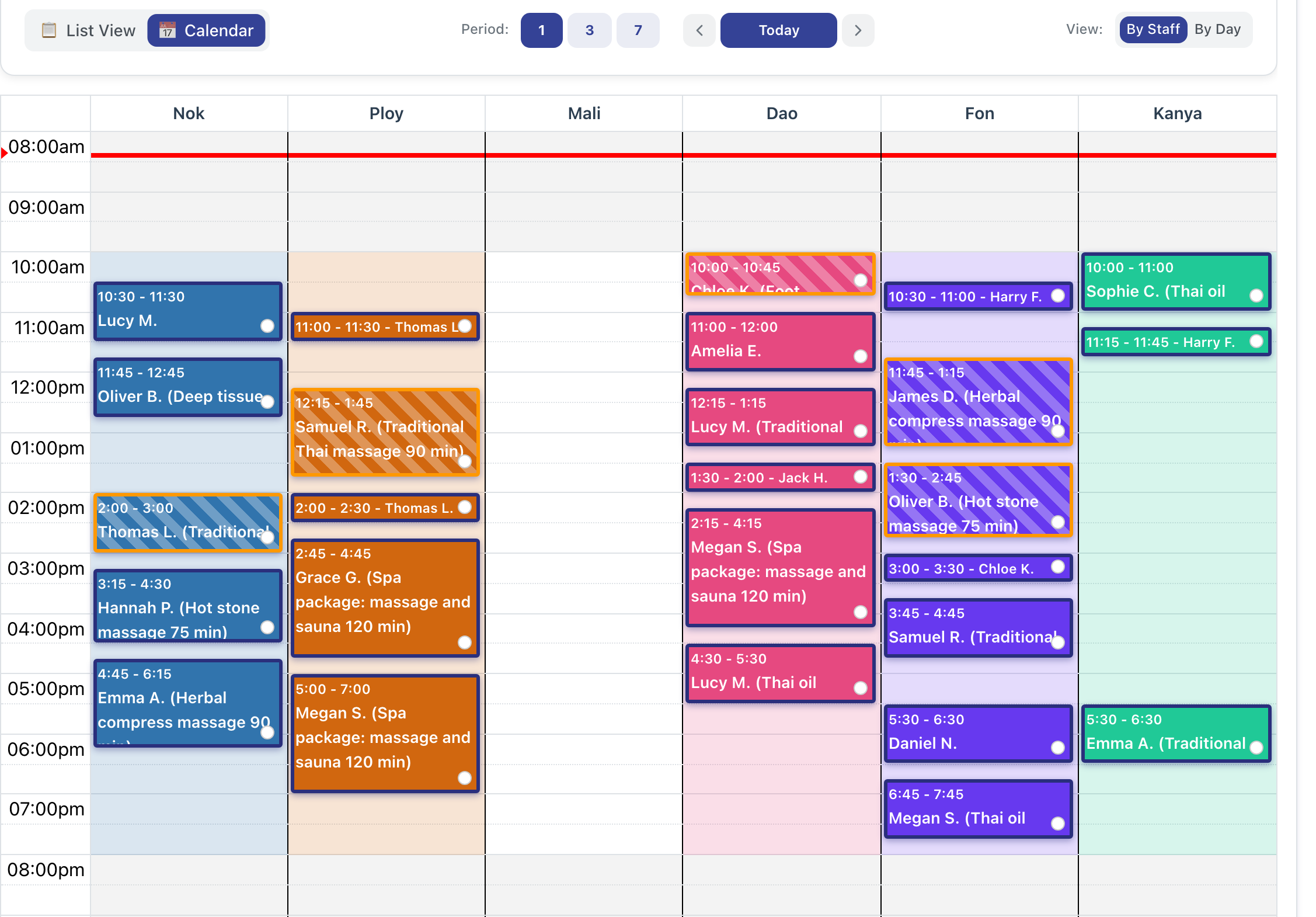
This is the schedule the assistant reads. When you ask "who is free tomorrow at noon", it answers from the same data you see in the calendar, in the studio's time zone.
Payments through the assistant
For a booking to be paid at the studio, the assistant can send an online payment request: the whole price or a deposit. You pick the deadline: in 6, 24 or 48 hours, or 24 hours before the appointment. The link never stays valid after the appointment starts. LineUp can send the link by e-mail, or the assistant gives you a ready message in the client's language to send from your own WhatsApp or by SMS. That way uses none of the messages in your plan.
Gift vouchers through the assistant
The assistant issues vouchers sold at the studio, e-mails them with the PDF, extends their validity, adjusts the amount, cancels them, and puts a voucher on a booking when the client brings one. This needs the gift voucher permission. When the studio sells vouchers online, the assistant also gives you the link to that page, for Instagram or messages, and the code to embed it on your own website.
Safety: what the assistant cannot do
The assistant works with your permissions, never more.
- A preview before every change. The assistant first gets a description of what will happen: who, when, which appointments fall outside a shift, and whether the client will be told. The change happens only when you confirm.
- Read only. You can limit a key or connection to reading. The assistant then changes nothing.
- Only your studios. The assistant works only with the studios you chose when connecting, and looks up clients only in the studio in question. Other studios are not visible to it.
- Permissions from LineUp. A staff member who may only manage appointments does not see the tools for shifts or vouchers. Some things only the owner can do, such as pausing online bookings or making someone a manager.
- Messages to clients only from templates. A WhatsApp or SMS goes out only from the studio's templates, never as free text, and counts against the plan's messages as usual.
- Clients and bookings are not deleted. An archived client keeps their appointments, and a removed service keeps the bookings already made.
Activity and revoking
Under AI assistant → Your keys you see every connected key, when it was last used and its latest actions. LineUp keeps a short log of actions for 180 days, without client contact details. An appointment the assistant books for a client records that it came through the assistant, and through which key.
Revoke ends the connection at once. The key stops working from that moment.
An assistant for the team
The owner or a manager turns on, per studio, which staff members may connect their own assistant, under AI assistant → Team. Turning it off works at once. Managers may always connect the studios they manage.
A staff member can then do what LineUp already lets them do. They also get their own tools: their schedule ("when do I work next week"), their hours this month, and a request for a day off, where the studio keeps absences in LineUp.
Example: a morning at reception
You: Who works tomorrow, and is anyone free between 12 and 2?
Assistant: Tomorrow Nok, Ploy, Dao, Fon and Kanya work. Mali has no shift. Between 12 and 2 Kanya is free the whole time.
You: Put Lucy M. in for a 60-minute Thai massage with Kanya at 12.
Assistant: Preview: Lucy M., Traditional Thai massage 60 min, tomorrow 12:00–13:00, Kanya. The client gets no message unless you want an e-mail confirmation. Shall I go ahead?
You: Yes, and send her a confirmation.
The exact words depend on the assistant, but the order is always the same: question, preview, confirmation.
Which plans
The AI assistant is part of every LineUp plan and is not charged separately. You pay only for your AI account, if you pay for one.
In short
- Connect: AI assistant → Copy address, then a connector in Claude or ChatGPT and sign in to LineUp.
- The assistant reads the schedule, bookings, clients and numbers, and changes them with a preview and your confirmation.
- You choose the studios, whether it may change things and how long the connection lasts. Revoking works at once.
- Instructions for each assistant are on Connect LineUp to your AI assistant.
How to connect your AI assistant
Related questions
- Is it safe? Can the AI change something without me?
- Can my staff use their own AI assistant?
- Can I manage vouchers and discounts through Claude or ChatGPT?
- How do I ask a client to pay an appointment online?
- How do I sell gift vouchers online?
- A staff member is sick. How do I record it quickly?
- How many SMS and WhatsApp messages do I get a month?