A calendar by therapist: appointments, walk-ins and rooms on one screen
A guide for owners and reception of massage studios: the schedule by therapist, shifts, breaks, absences, rooms, walk-ins and unfinished online bookings.
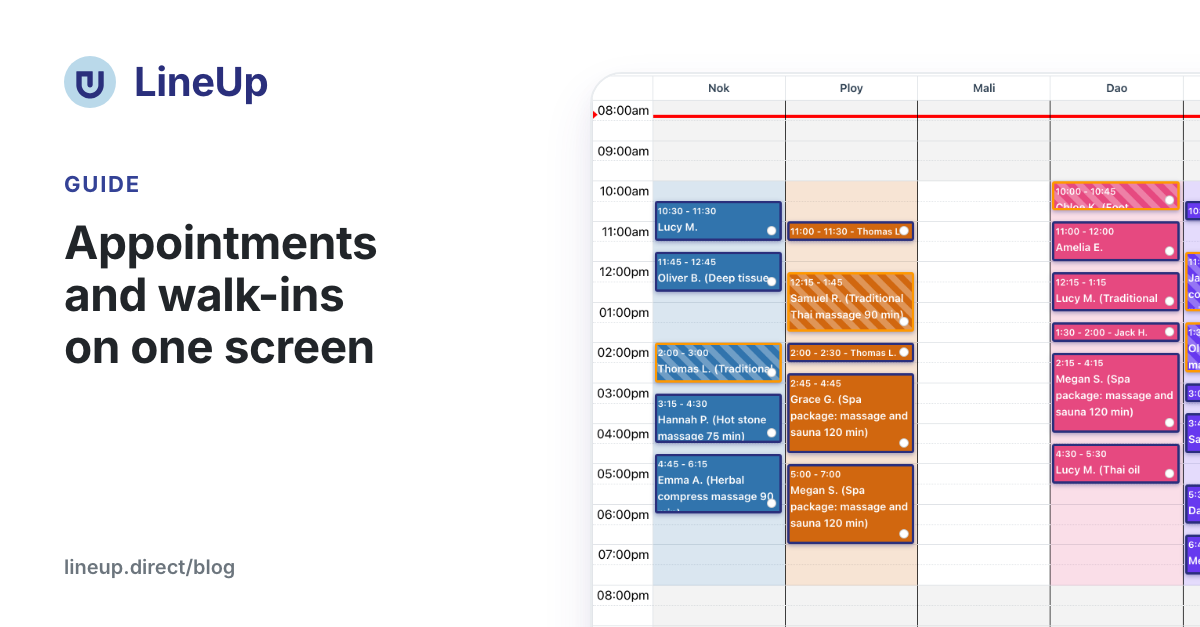
At a massage studio with a team, reception needs to know three things at any moment: who is free, which room is free, and where the client who just walked in can fit. LineUp shows this on one screen, the Schedule. Every therapist has their own column and colour. Appointments, walk-ins, breaks and blocked time sit in one place, and online bookings appear by themselves.
This guide is for owners and reception. It covers how to read the schedule, how to add to it, and what LineUp does on its own.
Where the schedule is
Open Store Management, choose the studio and the Schedule Management tab. On a phone, Schedule is the first item of the bottom menu.
The top bar has everything you need to move around:
| Control | What it does |
|---|---|
| List View / Calendar | A list of bookings, or a calendar with a time line |
| Period: 1, 3, 7 | One day, three days or seven days |
| ‹ Today › | Previous period, back to today, next period |
| View: By Staff / By Day | A column per therapist, or a column per day with the therapists inside it |
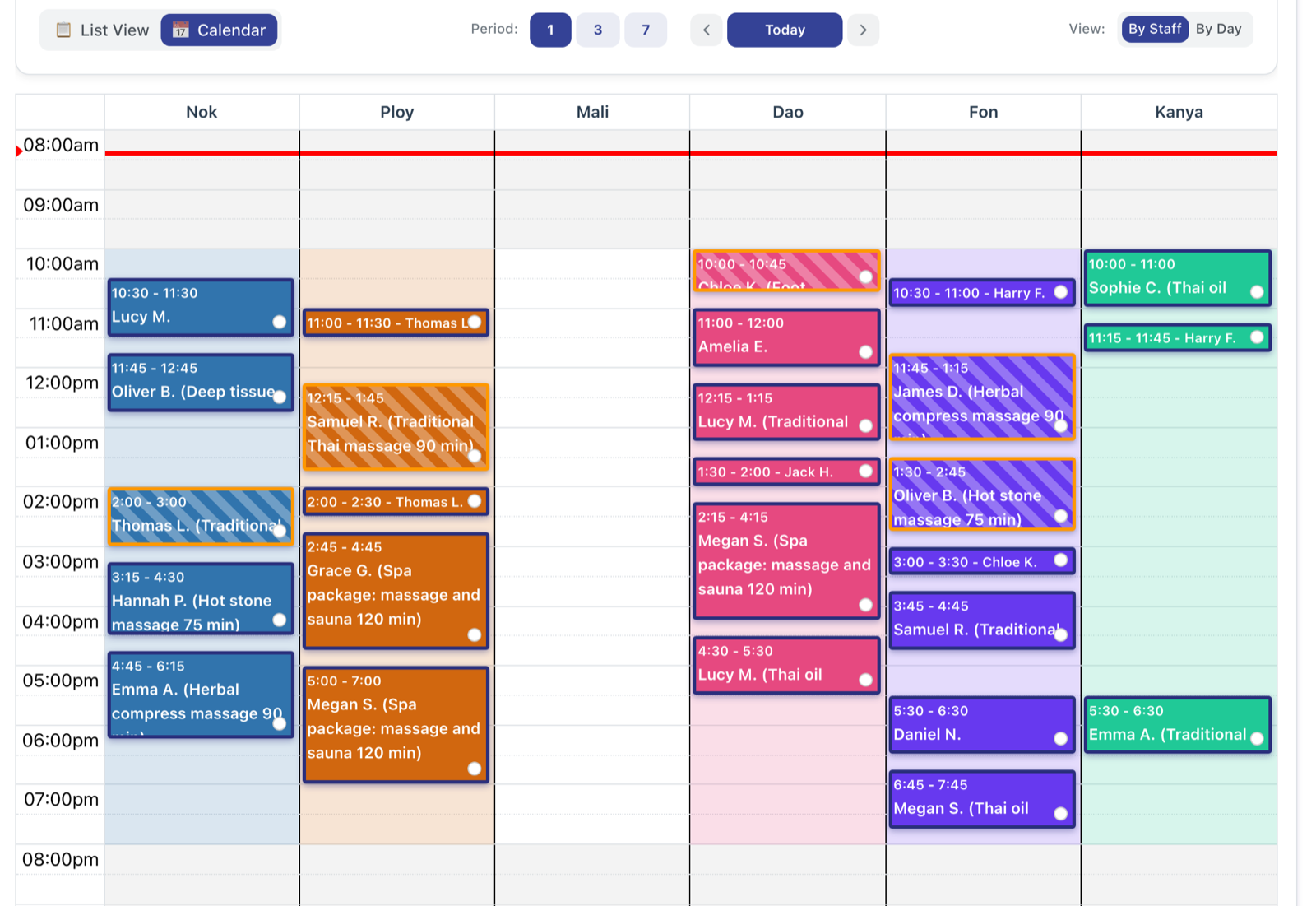
How to read the schedule
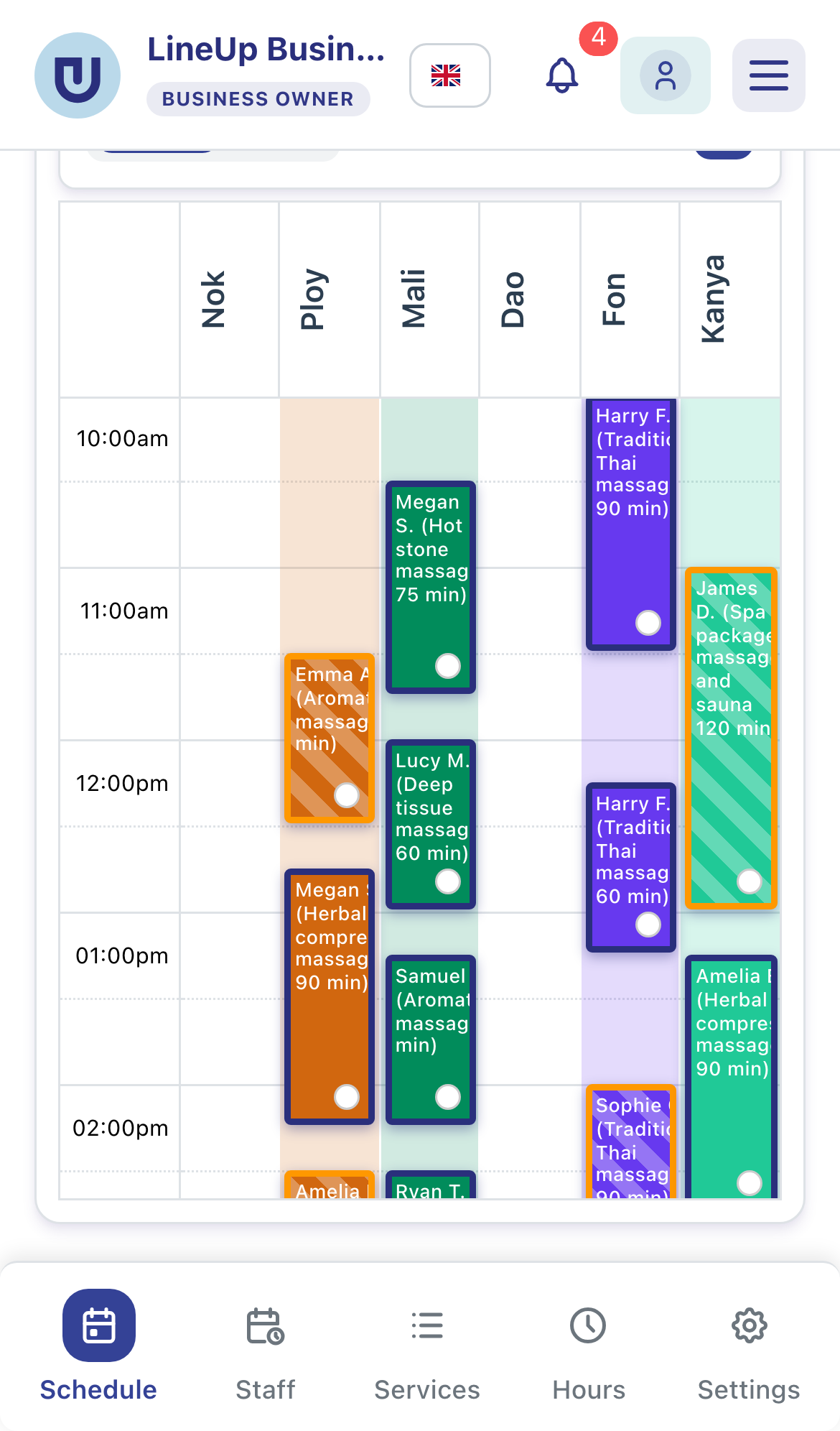
- The coloured background of a column is that therapist's shift. Outside it the therapist takes no online bookings.
- Grey areas are outside the studio's opening hours.
- The red line is the current time.
- An appointment is a block in the therapist's colour, with the time, the client's name and the service.
The state of an appointment shows on the block itself:
| Looks like | State |
|---|---|
| Solid therapist colour | Confirmed |
| Stripes and an orange border | Pending: waiting for the studio to confirm |
| Light grey, dashed border | Draft: the client is still booking online |
Cancelled appointments disappear from the calendar and free the time.
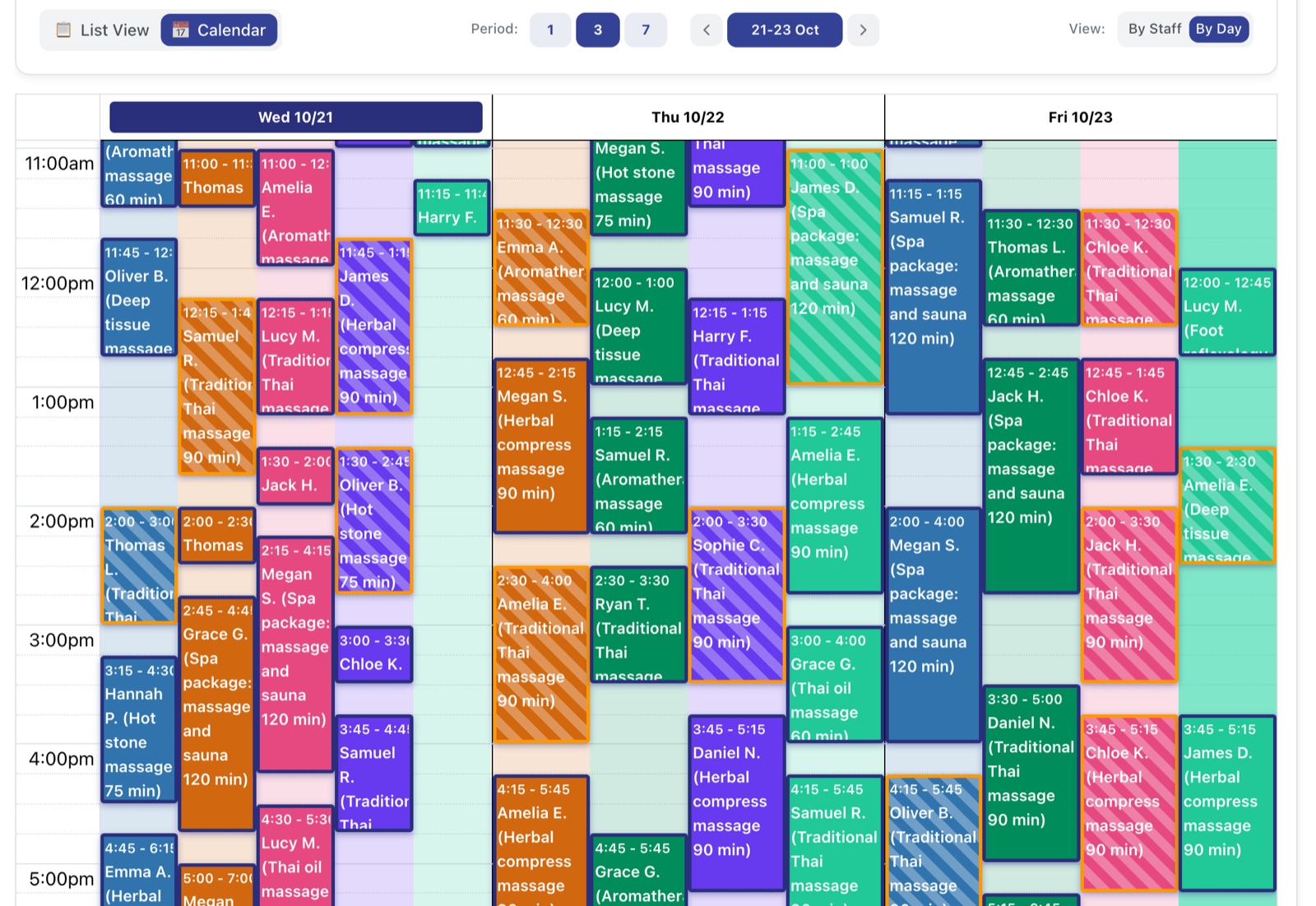
Period 3 or 7 shows several days at once, up to a whole week. In the By Day view, each day has a lane per therapist.
Adding an appointment, a walk-in, a break or a block
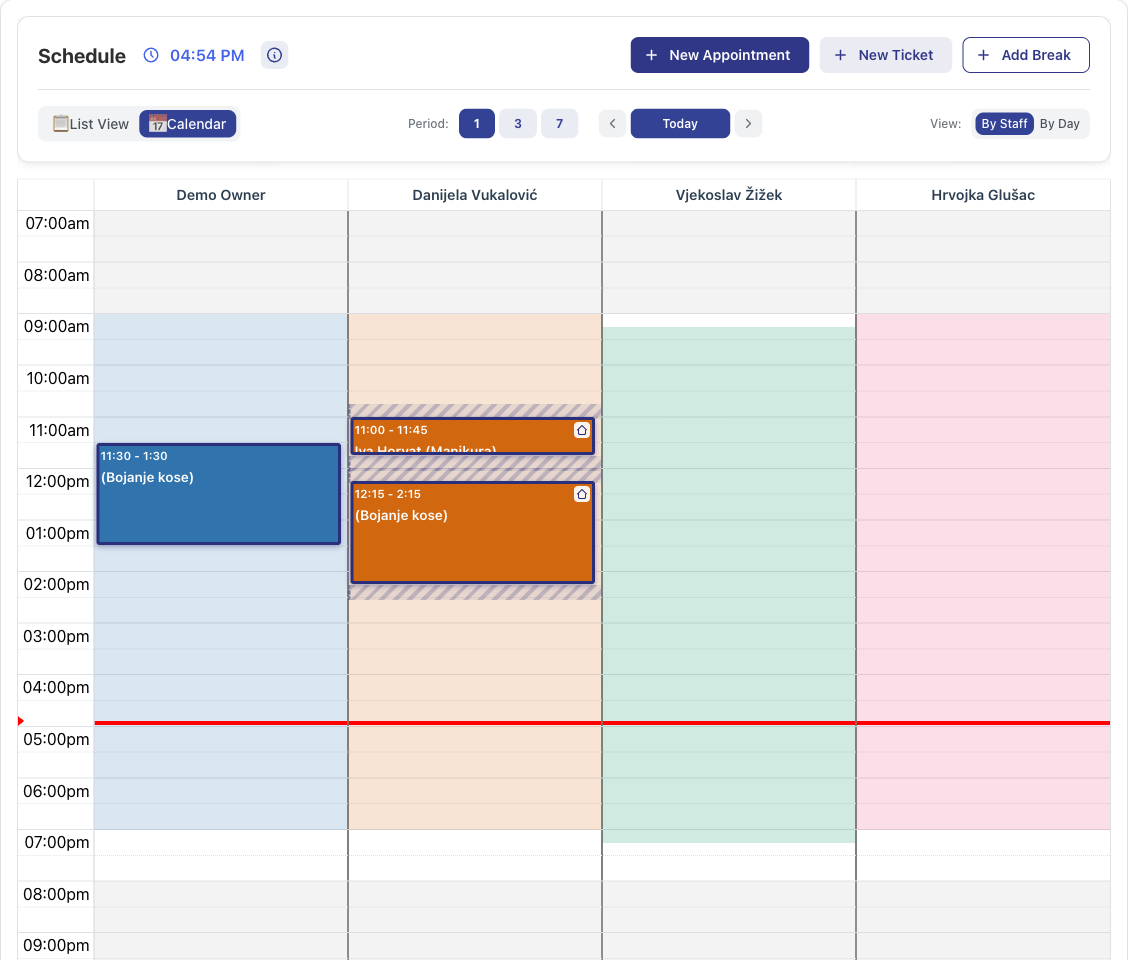
The New Appointment and Add Break buttons sit above the schedule, joined by New Ticket in Hybrid Mode. It is quicker to click an empty spot in a therapist's column. LineUp then asks what you want to add, with the time and the therapist already chosen:
- New Appointment: service, therapist, time and the client's details. The client can get a confirmation.
- New Ticket (in Hybrid Mode): a client who walked in without a booking gets a place in the queue.
- Add Break: lunch, a meeting or a personal break for a therapist. A break must be inside the shift and can repeat daily, weekly or monthly.
- Block time: closes a slot to online bookings, for example to clean a room or take a delivery.
Moving an appointment
Drag an appointment to another time or into another therapist's column. The change is saved as soon as you let go.
Walk-ins and appointments together
A studio that takes both bookings and clients off the street works in Hybrid Mode. You turn it on in Store Settings, under Operation Mode. New Ticket then appears on the schedule.
A ticket is a client in the queue. When you add one, you choose the service and, if you like, send the client a confirmation with their place in the queue by SMS or e-mail. Active tickets are lined up on the schedule from the current time, in the order they were added, around the booked appointments. Reception sees when the therapist will get to the waiting client without working it out on paper.
LineUp does not give a ticket to a therapist who is on a break or away.
Shifts and breaks
Shifts are set on the Staff tab, under All Shifts: one at a time with Add Shift, or for several weeks with Add Recurring. Online booking offers only times inside a shift, without breaks and without booked appointments.
Online booking leaves a gap between appointments, for example to prepare the room. You set the minutes in Store Settings, in Buffer time between appointments (minutes).
Absences: holidays, sick leave, days off
You record holidays, sick leave and days off on the Absences page in the menu. A therapist who is away is not offered for online bookings or for walk-ins.
- You or a manager can record an absence for any therapist, and it applies at once.
- Therapists can ask for time off themselves if you turn on "Staff may ask for time off in LineUp". Their request then waits for you to approve or reject it. The switch is off by default.
- Sick leave is recorded at once, without approval, and you are notified.
- Half a day (the morning or afternoon half) becomes a break over that half of the shift.
When an absence is entered, LineUp shows the appointments the therapist already has in that time. They stay booked, and you decide whether to move them. On the Staff tab, in Schedule View, the header of each day shows how many staff are away. Point at that badge to see who.
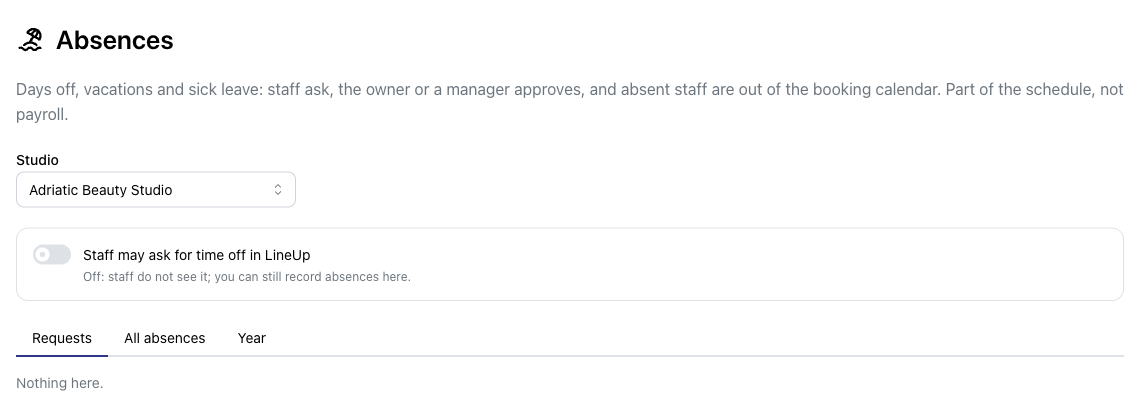
The Year tab shows each therapist's days away by kind and the hours from their shifts, with an optional annual leave allowance and a CSV export for the accountant. LineUp does not calculate pay or overtime.
Rooms
If the studio has fewer rooms than therapists, turn on Use Workstations in Store Settings. Then:
- add the types with Add Type, for example "Room" or "Couples room";
- add the rooms themselves with Add Workstation, for example "Room A" and "Room B", and give each a type;
- on each service, choose under Workstation Type which type it needs.
Online booking then offers only times when both the therapist and a room of that type are free. LineUp assigns a free room when the booking is made. A massage at the client's address takes no room.
Unfinished online bookings clean themselves up
When a client reaches the payment step online, LineUp already holds their time so nobody else takes it meanwhile. On the schedule this is a draft: a light grey block with a dashed border.
- A draft cannot be moved or confirmed, because the client is still booking.
- If you need the time, you can cancel the draft. The client gets no message.
- If the client does not finish, the draft is removed by itself 30 minutes after they started. LineUp checks every five minutes.
- If the client has paid but something got stuck, LineUp completes the booking instead of removing it.
So reception does not have to clean up abandoned bookings, and no time is lost.
Appointments waiting for confirmation
For a service where you turned on confirmation, an online booking does not come in confirmed. On the schedule it is striped, with an orange border. Open it, check it and confirm it. The client then gets the confirmation.
The schedule on a phone
The same schedule works on a phone: columns by therapist, appointments in their colours, and a bottom menu with the schedule, staff, services, hours and settings. The owner can see who is free from outside the studio too.
The first week: what to set up, in order
- The studio's opening hours.
- Services with duration and price.
- Therapists and which services they do.
- Shifts, easiest as recurring ones.
- Rooms, if there are fewer of them than therapists.
- Hybrid Mode, if you also take walk-ins.
- Absences, if you want therapists to ask for time off in LineUp.
The LineUp team can set up your studio for you: price list, team, rooms and hours.
Related questions
- Where is the appointment calendar?
- How do I change the calendar view?
- What do the colours and marks in the calendar mean?
- How do I book an appointment for a client?
- How do I add a client who walked in without an appointment?
- How do I move an appointment to another time or another staff member?
- How do I close a time in the calendar so clients cannot book it?
- How do I add a staff break, and how is it different from a block?
- How do I add a shift for a staff member?
- How do I add shifts that repeat every week?
- How do I turn on time-off requests?
- A staff member is sick. How do I record it quickly?
- How does a half-day absence work?
- How do I set up rooms or beds so that appointments do not overlap?
- There is a light grey appointment I cannot move. What is it?
- Why does an online booking wait for my confirmation, and how do I confirm it?